


Handling 500 Errors on a Website: How to Narrow Down the Cause and Recover Safely


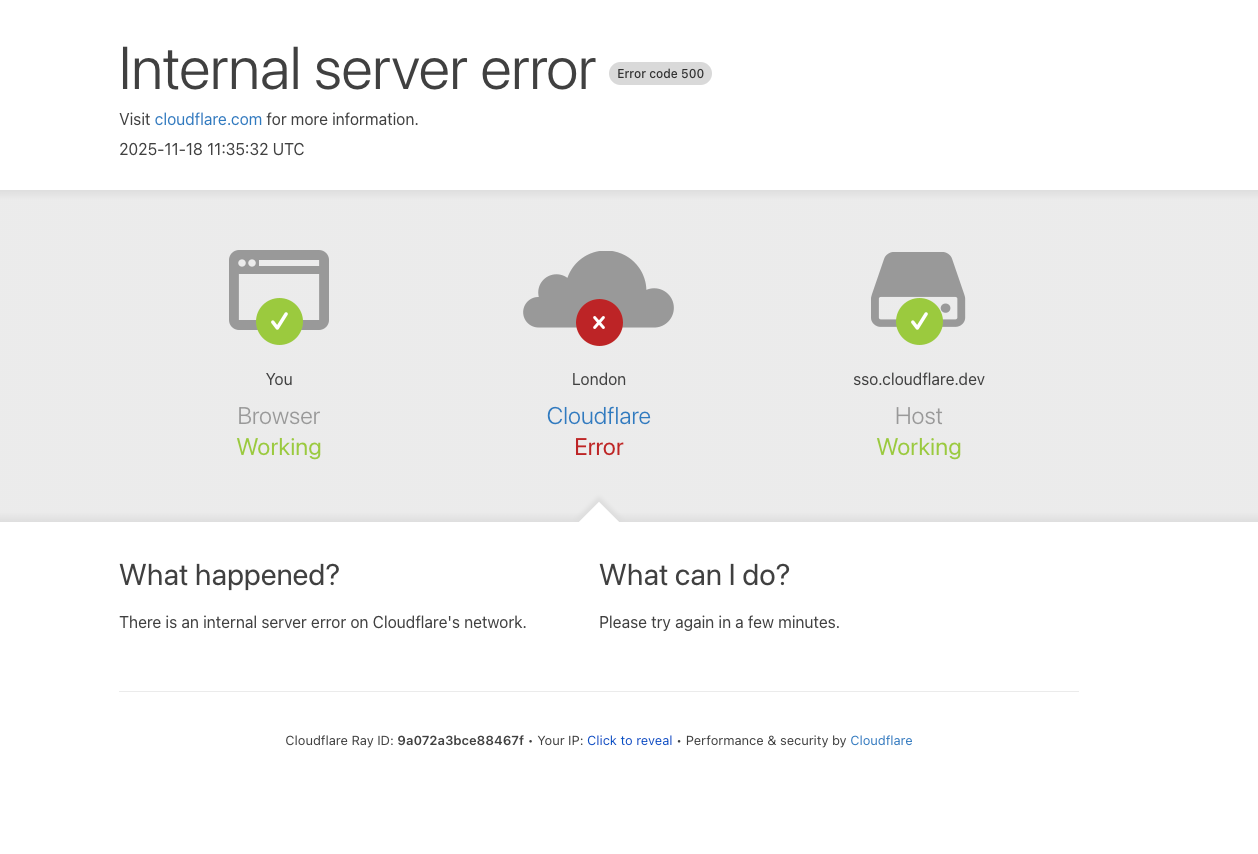
A 500 error is one of the messages that causes website administrators the most concern. Instead of displaying the content requested by the user, the server only returns a general message stating that an internal error has occurred. The problem is that this status code does not immediately indicate a specific cause. The error may originate from source code, extensions, server configuration, resource limits, file permissions, or a newly deployed change.
Because the 500 message is quite general, troubleshooting based on guesswork often makes the situation more complicated. An administrator may unintentionally change multiple configurations at once, accidentally delete necessary files, or install additional tools without understanding the root cause. A good process should begin by determining when the error appeared, its scope of impact, and the most recent change before making repairs. The goal is not only to restore the website’s operation, but also to preserve data, document the cause, and reduce the likelihood of the error recurring.
Understanding 500 Errors Correctly
HTTP status code 500 indicates that the server encountered a situation it could not handle while responding to a request. This does not necessarily mean that the server has completely failed. In many cases, the homepage cannot be accessed while some other resources or areas continue to work. The error may also occur only during a particular action, such as submitting a form, logging in to the administration area, or uploading a file.
End users usually see only a brief message such as “Internal Server Error.” Meanwhile, more useful information may be found in the server logs, application logs, or error-logging tools of the content management system. Therefore, the first step is not to clear the cache or reinstall the entire website, but to collect enough evidence to determine which layer the error occurs in.
Assessing the Scope and Time of Occurrence
Try accessing the website from a different browser, another device, or another network. This check helps distinguish an actual server error from a local issue related to the cache, cookies, or the connection of a particular device. If every location receives a 500 status code, the cause is likely in the application or server. If only one area is affected, the paths, permissions, and specific configuration of that area should be examined further.
Next, record when the error began. Compare this point in time with recently performed activities such as system updates, theme changes, extension installations, configuration file edits, PHP version changes, or server parameter changes. A temporal relationship does not automatically prove causation, but it can significantly narrow the search.
If the error appeared after a specific change, temporarily return the website to the state immediately before that change, provided that a backup or a clear rollback plan is available. Avoid performing multiple updates in succession while the cause is still unknown, because each new change will make comparison and tracing more difficult.
Check the Logs Before Making Repairs
Logs are the most important source of information when handling a 500 error. Depending on the configuration, the system may record errors in the web server log, PHP log, application log, or debug file of the content management platform. Look for lines that appeared around the time of the error and pay attention to keywords describing the cause, such as exhausted memory, syntax errors, missing classes, denied access, or execution time exceeding the limit.
Do not look only at the final line and immediately draw a conclusion. An error displayed in the browser may be the final result of an error that occurred earlier in the processing. Reading a continuous section of the log before and after the time of occurrence will help reveal the sequence of events. If you do not have permission to view the logs, contact the hosting provider and provide the time, the failing path, and the recent changes.
In a production environment, detailed debug information should not be displayed publicly to visitors. Such messages may expose file paths, system structures, or unnecessary technical data. Enabling controlled internal logging is generally safer than enabling direct error display on the screen.
Common Groups of Causes
Faulty Source Code or Extensions
A syntactically incorrect section of code, a call to a function that is no longer supported, or conflicts between extensions can cause processing to stop abruptly. This situation often occurs after updating the platform, changing the runtime environment version, or installing a new feature. If you have access to the administration area, check the update history and temporarily disable the component that was changed most recently. Perform the steps one at a time to determine which component is involved, rather than disabling everything at once and losing track of the cause.
For websites using a content management system, renaming an extension directory or temporarily moving all extensions out of the active directory can be a way to investigate when logging in is not possible. However, this action requires carefully recording each name and its original status so that everything can be restored accurately after testing.
Resource Limits
A website may return a 500 error when processing requires more memory or time than the server allows. Heavy data queries, large data-import tasks, oversized uploads, or a loop in the source code can all cause resources to be used abnormally. In that case, temporarily increasing the limit may help complete a task, but it does not replace finding and optimizing the cause of the resource consumption.
Administrators should review CPU usage, memory, storage capacity, and the number of processes during the period when the error occurred. If resources continually reach their limits, background tasks, database queries, scheduled jobs, and unnecessary functions should be reviewed. Upgrading the server plan without examining the application may increase costs while the error remains.
Permissions and Configuration Files
The server needs appropriate permissions to read source code, load configuration files, and write data to permitted directories. Permissions that are too restrictive can prevent the application from working, while permissions that are too broad increase security risks. After moving a website, extracting source code, or restoring data, discrepancies in file ownership and permissions are causes that should be checked.
Server configuration files also need to be examined carefully. An incompatible directive, an extra character, or an incorrectly written rule can cause all requests to fail. Do not replace a configuration file with one taken from another website simply because it has a similar structure. Each environment may differ in paths, software versions, and directory organization.
Changes to Environment Versions
When the PHP version, web server, library, or database changes, older source code may develop compatibility errors. A common sign is that the website operates normally and then fails immediately after a version change. In this situation, comparing the logs with the list of changes is more valuable than randomly editing individual files.
If it is necessary to revert to the previous version to restore service, this should be considered a temporary measure. Afterward, a plan should be made to update the source code, extensions, and configuration to be compatible with the new environment. Maintaining an old version for a long time can create additional security risks and make future upgrades more difficult.
A Controlled Recovery Process
Before making changes, back up the relevant components, including the source code, database, and configuration files. The backup should be tested to a level where it can actually be restored, rather than merely existing as a file that has never been opened or tested. If the website handles transactions or other important activities, notify relevant internal parties about the possibility of disruption and record who performs each action.
Next, reproduce the error using a specific path or action. Record the result before and after each change. If an extension is suspected, disable extensions one at a time in order of priority. If the theme code is suspected, temporarily switch to the default theme or a version known to be stable. If resources are suspected, check the logs and usage levels instead of simply increasing the limits.
Once the component causing the error has been identified, restore that component from a stable backup or fix it according to the specific cause. Do not immediately restore the entire website if only one file or one configuration is faulty, because doing so may overwrite newly generated data. After making the repair, test the homepage, important paths, login functionality, forms, the administration area, and operations related to the database.
Approaches That Can Easily Make the Situation Worse
Clearing the entire cache cannot resolve a server error if the cause lies in the source code or configuration. Similarly, reinstalling the platform before making a backup can remove customizations and make the investigation more difficult. Another mistake is changing multiple parameters at once. Even if the website starts working again, the administrator will not know which factor resolved the problem, and the error may return after the next update.
You should also avoid copying configurations or code snippets from sources of unknown origin. A file advertised as a “quick error fix” may contain unsafe code or be unsuitable for the system. If outside assistance is required, provide the necessary information but do not publicly send passwords, access keys, or customer data.
Preventing 500 Errors from Recurring
Effective prevention begins with change control. Each update should be recorded with its time, component, and person responsible. Major changes should be tested in a testing environment before being deployed to the website serving visitors. This approach helps detect conflicts without directly affecting business operations.
The website also needs mechanisms for monitoring status and sufficiently clear logs to detect errors early. Administrators should know which paths the website is monitoring, who receives alerts, and how long log data is retained. Backups must be performed regularly, stored in an appropriate location, and tested for recoverability. This is the foundation for handling incidents calmly instead of having to make repairs directly on the only copy of the data.
Finally, keep the source code, extensions, and runtime environment in supported states. Removing unused components, restricting access permissions, and separating administrator accounts will help reduce the number of points where errors can arise. When a 500 error occurs, a process with clear documentation, backups, testing, and rollback procedures will help shorten downtime while protecting the integrity of the website.