


Password Management Software: How to Build Safe and Convenient Login Habits

Passwords remain a familiar part of digital life, from email accounts, social media and online banking to everyday work services. The problem is that the number of accounts continues to grow, while people find it difficult to remember a long, different password for every service. As a result, many people reuse a password, modify a familiar pattern or save login information in insecure places. These habits make logging in faster in the short term but increase the risks when one account is exposed.
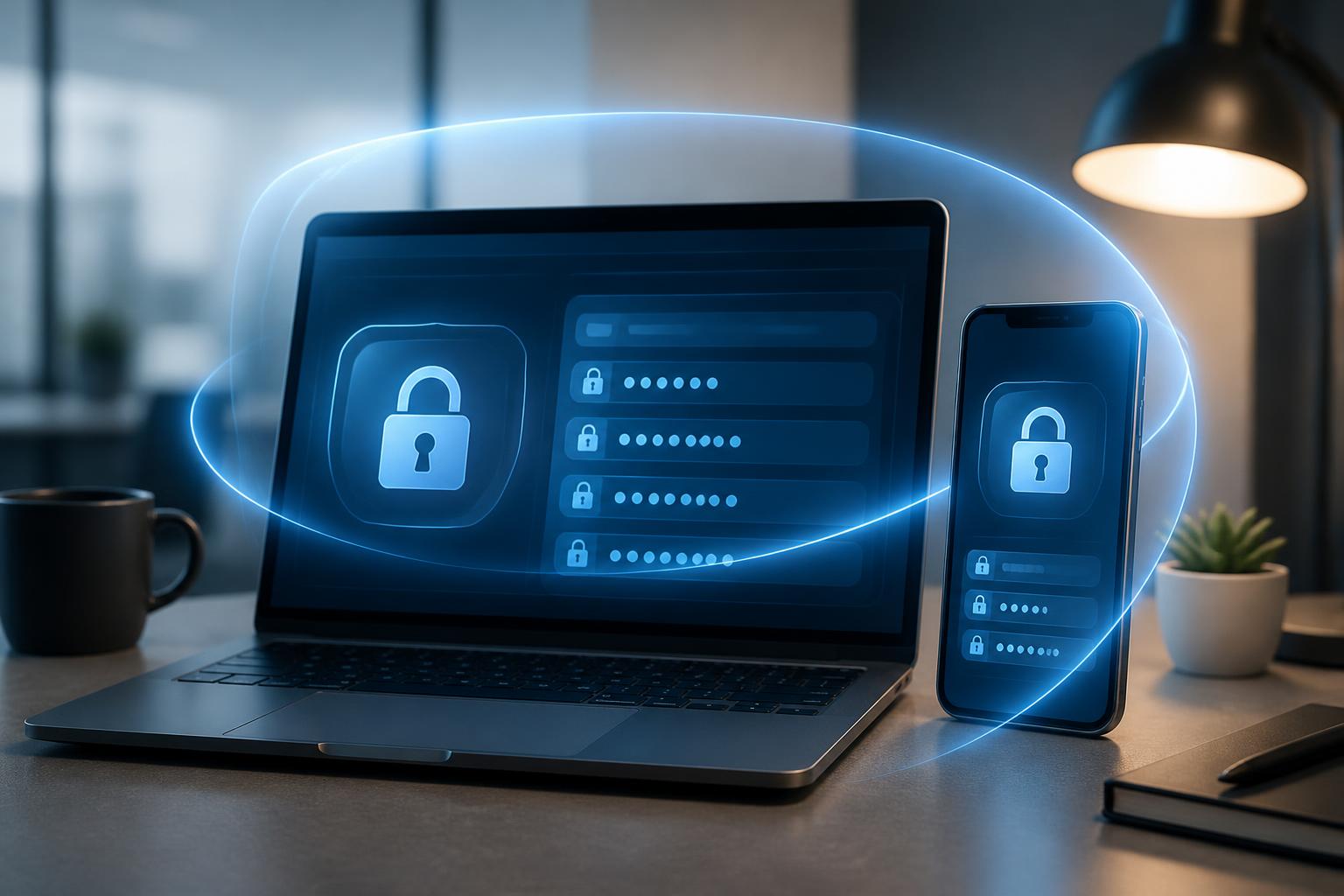
Password management software was developed to solve this problem. This tool can store login information in a protected data vault, support the creation of random passwords and automatically fill out forms when users access websites or applications. Although it is not a complete replacement for other security measures, password management software helps turn account protection into a clear, easier-to-maintain process.
How does password management software work?
Basically, password management software uses a master password to protect a vault of login information. In this vault, users can store usernames, passwords, website addresses, security notes and sometimes other sensitive data. When they need to log in, users open the vault with the master password, then find the relevant record or allow the software to fill in the information automatically on an identified website.
This organization creates an important change in usage habits. Instead of having to remember dozens of passwords, users only need to remember one sufficiently strong master password. The remaining passwords can be long, complex and different without needing to be memorized manually. Some software also supports synchronizing data between computers and mobile devices, allowing login information to be used when users switch devices.
It is important to understand that password management software does not automatically make every account secure. If users set a master password that is too easy to guess, share their password vault or ignore warnings about untrustworthy websites, the tool’s benefits will be reduced. This is a layer of protection that supports users, not a reason to disregard multifactor authentication or basic security principles.
Practical benefits in everyday use
Reducing password reuse
Using one password for multiple services is an understandable habit because it reduces the burden of memorization. However, if a service experiences a security incident and login information is exposed, other accounts using the same password may also be targeted. Password management software makes it possible to create a separate password for each service, thereby limiting the broader impact when one account is compromised.
Users do not necessarily have to change all their passwords at once. A more practical approach is to prioritize important accounts such as the primary email account, financial accounts, data storage services and website administrator accounts. After that, other groups of accounts can be reviewed and switched to separate passwords over time.
Creating harder-to-guess passwords
A good tool usually includes a feature for generating random passwords according to the length and character groups selected by the user. Passwords created this way do not depend on names, birth dates, phone numbers or familiar words. Users also do not have to sacrifice complexity simply because they are worried about being unable to remember a password.
In practice, what matters is not only whether a password contains multiple types of characters, but also whether each service has its own authentication information. A long password that is used in many places can still create a significant risk. Conversely, a well-organized password vault helps users maintain this separation without having to keep scattered records.
Saving time and reducing input errors
Auto-fill can reduce the time spent typing passwords on small screens or in lengthy forms. It also limits errors caused by entering the wrong characters, confusing uppercase and lowercase letters or forgetting part of a password. However, users should check the domain name before accepting auto-fill, especially when accessing a site through a link in an email, message or advertisement.
The ability to correctly recognize websites is an important criterion. A tool should distinguish between similar-looking addresses instead of filling in information on every page that contains a login form. Users still need to observe the address bar and should not regard the auto-fill feature as absolute confirmation that a website is safe.
Criteria for choosing suitable software
The first criterion is how the software protects the data vault and authentication information. Users should review the provider’s official documentation regarding encryption, unlocking mechanisms, data synchronization and account recovery options. This information should be presented clearly and be easy to verify, rather than relying only on vague advertising phrases.
Device support also directly affects the user experience. If users regularly work with different computers, phones and browsers, they should first check whether the software operates reliably on those platforms. A tool that is convenient on only one device but difficult to use on another may cause users to return to the unsafe habit of storing passwords.
The interface and search functions are equally important. When a data vault contains many records, sorting them into groups, adding labels or searching quickly can help reduce confusion. Features such as detecting duplicate passwords, flagging outdated information and notifying users when there is a problem with the data can support the review process, but users still need to decide for themselves which information to change and when.
For families or work groups, the way information is shared should be considered. Sharing should be limited according to need and access permissions, rather than sending passwords through messages or storing them in a shared file. When a member no longer needs access, their permissions should also be revoked. This administrative aspect is often overlooked when people focus only on password storage and auto-fill functions.
How to set it up from the beginning
The first step is to create a master password that is sufficiently long, difficult to guess and not used for any other service. Users should choose a memorization method that suits them while avoiding public information or details that are easy to associate with them. The master password should not be stored in the same place as the data vault it protects.
After setup, enter important accounts first and check each record. Website addresses should be saved correctly, account names should be clear and sensitive notes should not contain more information than necessary. This is also an appropriate time to delete duplicate records, accounts that are no longer in use and passwords that have been saved in multiple places.
Next, users can create new passwords for each priority service. They should not change everything hastily if doing so increases the risk of confusing accounts or forgetting to update records. A simple list organized by level of importance will make the transition more orderly. The primary email account should usually be handled early because it may serve as a recovery channel for many other accounts.
Multifactor authentication should be enabled whenever a service supports it. The password managed in the vault is only one layer of protection; authentication codes, security keys or additional verification methods can reduce the risk when a password is exposed. Users should pay attention to recovery options and keep backup codes in a safe place, avoiding the loss of access simply because they changed devices.
Mistakes to avoid
The most common mistake is setting the master password according to an easily guessed pattern or reusing the master password elsewhere. If the master password is exposed, the entire data vault may be at risk. The next mistake is sharing the password vault through screenshots, text files or unprotected messages. Convenience for a few minutes can create a copy that is difficult to control later.
Users should also avoid installing password management extensions from unclear sources. Browsers and operating systems need to be updated, and the permissions requested by an extension should be reviewed before installation. If an application shows signs of unusual activity, displays suspicious forms or auto-fills the wrong website, users should pause and investigate rather than continuing to use it out of habit.
Another issue is relying entirely on one tool without preparing a recovery plan. Learn how to regain access if you forget the master password, lose a device or experience a synchronization error. This does not mean creating multiple arbitrary copies, but rather identifying the official procedure in advance and storing recovery information in an appropriate place.
Balancing convenience and control
Password management software is most effective when viewed as part of an overall security process. The tool can help create and store passwords, but users must still check websites, update devices, enable multifactor authentication and remain cautious about phishing emails. Login information should not be entered simply because a page looks like a familiar service.
Small businesses can apply similar principles by distinguishing personal accounts from shared accounts, limiting access and maintaining a process for revoking access when personnel change. Administrator accounts should be prioritized for protection, while login information for important services should not depend on the memory of a single individual.
The important thing is to choose a tool that users are genuinely willing to use over the long term. A solution with many features but excessive complexity may be abandoned, whereas a tool that is sufficient, easy to check and compatible with the devices in use can help maintain good habits. Security comes not only from technology but also from the ability to turn technology into an everyday process.
Conclusion
Password management software helps resolve a common conflict: accounts need separate, difficult-to-guess passwords, but people cannot remember too much complex information. By concentrating storage in a protected vault, supporting the creation of new passwords and reducing login errors, this tool can improve security without making the experience overly burdensome.
To use it effectively, start with a strong master password, gradually move important accounts to separate passwords, enable multifactor authentication and carefully check installation sources. Combined with habits of caution around unfamiliar links, software updates and access management, password management software can become a practical foundation for protecting digital identities.