


What DKIM and DMARC Are and Why They Are Essential?


DKIM (DomainKeys Identified Mail) allows a sending mail server to attach a digital signature to email headers. The receiving server uses the public key stored in DNS to verify that the email was truly sent from the domain and that its content was not altered in transit.
DMARC (Domain-based Message Authentication, Reporting and Conformance) builds on DKIM and SPF. It allows you to:
Define how spoofed emails should be handled
Receive reports about authentication failures
Protect your brand from being abused for spam or phishing
Without DKIM and DMARC, emails are more likely to land in spam folders or be used by attackers to impersonate your domain.
2. Check Whether DKIM Already Exists in CyberPanel
Step 1: Log in to CyberPanel
Access:
https://your-server-ip:8090
Log in with your administrator account.
Step 2: Check DKIM for a Domain
Go to:
Email → DKIM Manager
Select the domain you want to check.
If the system displays a DKIM record beginning with:
v=DKIM1; k=rsa; p=
then DKIM has already been generated.
If not, you will see an option to create one.
3. Generate DKIM in CyberPanel
Method 1: Using the Interface
Go to:
Email → DKIM Manager → Select Domain → Generate DKIM
CyberPanel will automatically create:
A private key used to sign outgoing emails
A public key that you must add to DNS
After generation, the system will provide a TXT DNS record.
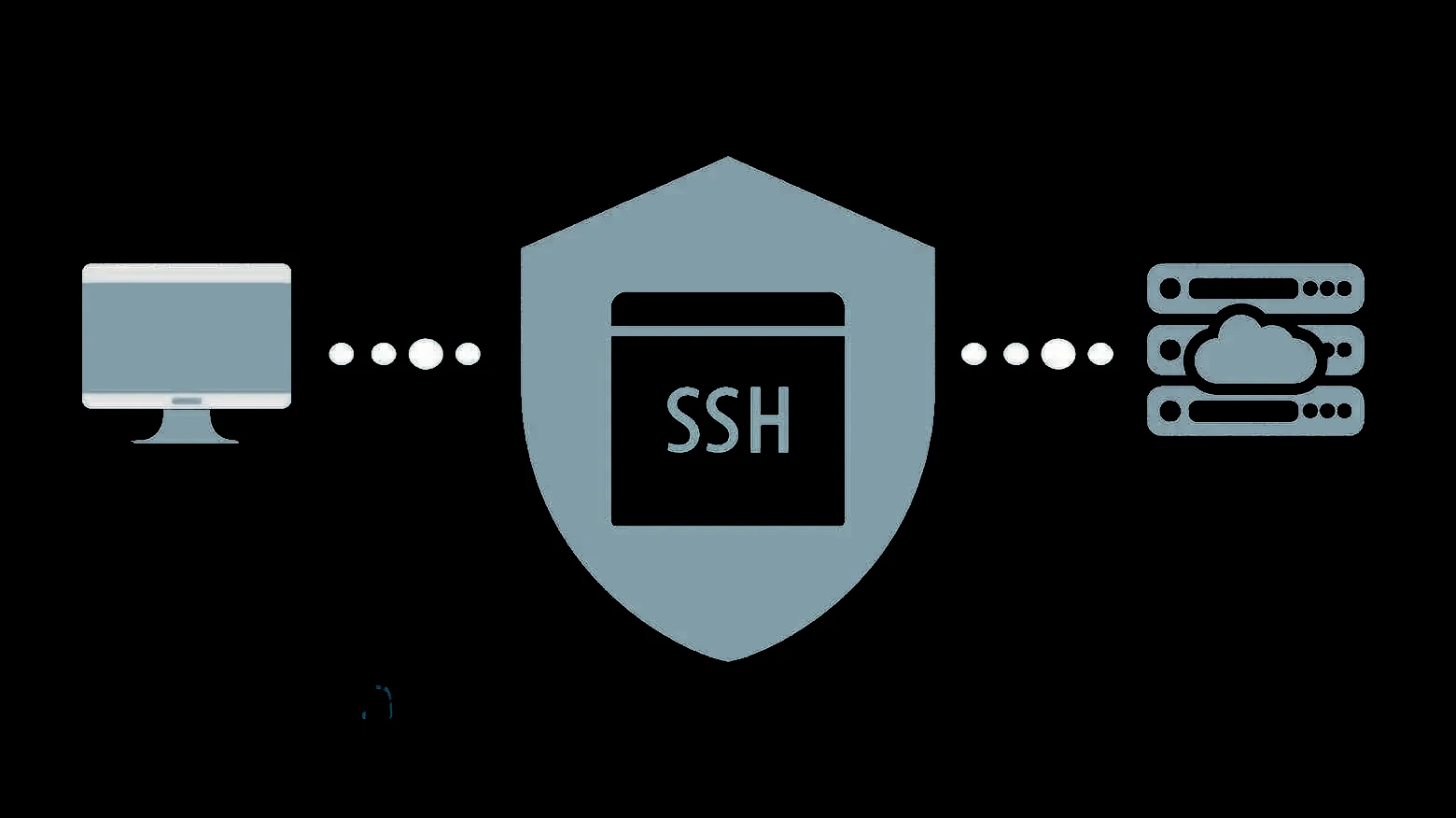
Method 2: Check via SSH
Connect to your server:
ssh root@your-server-ip
Check the DKIM key directory:
ls /etc/opendkim/keys/yourdomain.com/
If you see a file such as default.txt, DKIM has been created.
View the public key:
cat /etc/opendkim/keys/yourdomain.com/default.txt
You will see a string beginning with:
v=DKIM1; k=rsa; p=MIIBIjANBgkqhkiG9w0BAQE...
4. Add the DKIM Record to DNS
Go to your domain’s DNS management panel and add the following record:
Type: TXT
Host/Name: default._domainkey
Value: (the DKIM string provided by CyberPanel)
After adding the record, allow time for DNS propagation.
Check with:
dig TXT default._domainkey.yourdomain.com
If the DKIM string appears, the configuration is correct.
5. Create a DMARC Record for the Domain
4
CyberPanel does not automatically generate DMARC. You must add it manually in DNS.
Basic DMARC Record
Add this TXT record:
Type: TXT
Host/Name: _dmarc
Value:
v=DMARC1; p=none; rua=mailto:admin@yourdomain.com
Meaning:
v=DMARC1 specifies the versionp=none means monitoring onlyrua= is where aggregate reports are sent
After the System Is Stable
You can increase protection.
Quarantine policy:
v=DMARC1; p=quarantine; pct=100; rua=mailto:admin@yourdomain.com
Reject policy:
v=DMARC1; p=reject; pct=100; rua=mailto:admin@yourdomain.com
6. Verify That DMARC Is Working
After adding the DNS record, check:
dig TXT _dmarc.yourdomain.com
If the DMARC string appears, the record exists.
You can also send an email from your domain to Gmail and open Show Original to check:
DKIM = PASS
SPF = PASS
DMARC = PASS
7. Verify That DKIM Signing Is Working
Send an email from an account hosted on your server to Gmail. Open the message details and look for:
DKIM-Signature:
If Gmail shows DKIM: PASS, the configuration is successful.
8. Common Issues
Emails still go to spam even with DKIM
Possible causes include:
No DMARC record
Server IP is blacklisted
Email content resembles spam
DKIM fails
DNS has not propagated
The DKIM string was copied incorrectly
Multiple conflicting DKIM records exist
DMARC fails
DKIM or SPF does not align with the sending domain
Emails sent through third-party services are not properly configured with SPF or DKIM